In the balantia app, you can add foods to a meal in two simple ways, depending on what works for you.
Ideal when you want to add food you haven’t used recently.
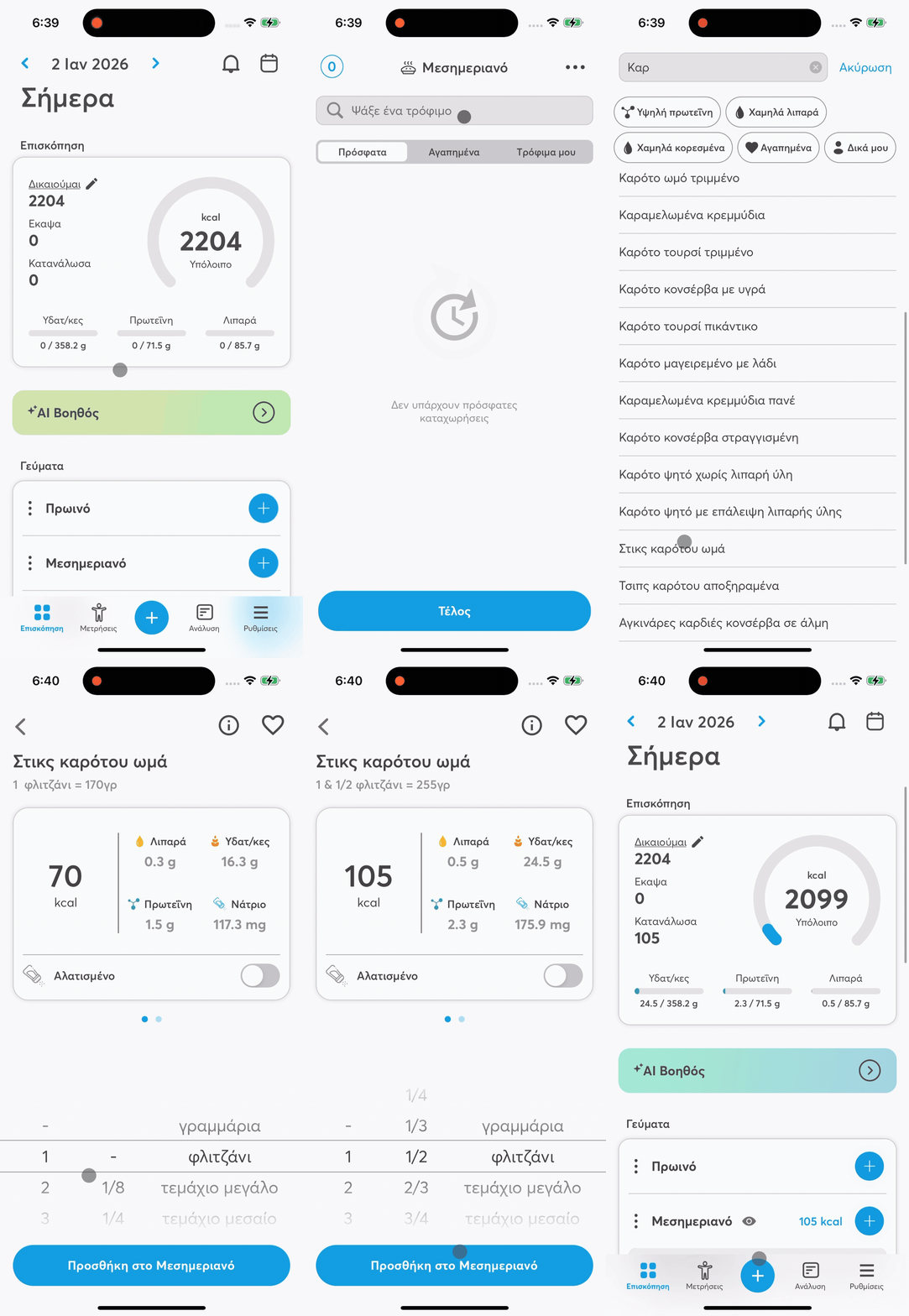
Open the app and pick the meal you want to add food to
(breakfast, lunch, dinner, or snack).
Tap the + button next to the meal
or the + at the bottom of the screen (tab bar) to open the search.
Type the name or brand of the food.
If your device supports it, you can also use voice search.
Tap on the food you want to add it to the meal.
Select the unit (e.g. grams, servings, slices, cups, palm, etc.)
and enter the amount you consumed.
Tap “Add” to register the food to your meal.
Perfect when you use the same foods often.
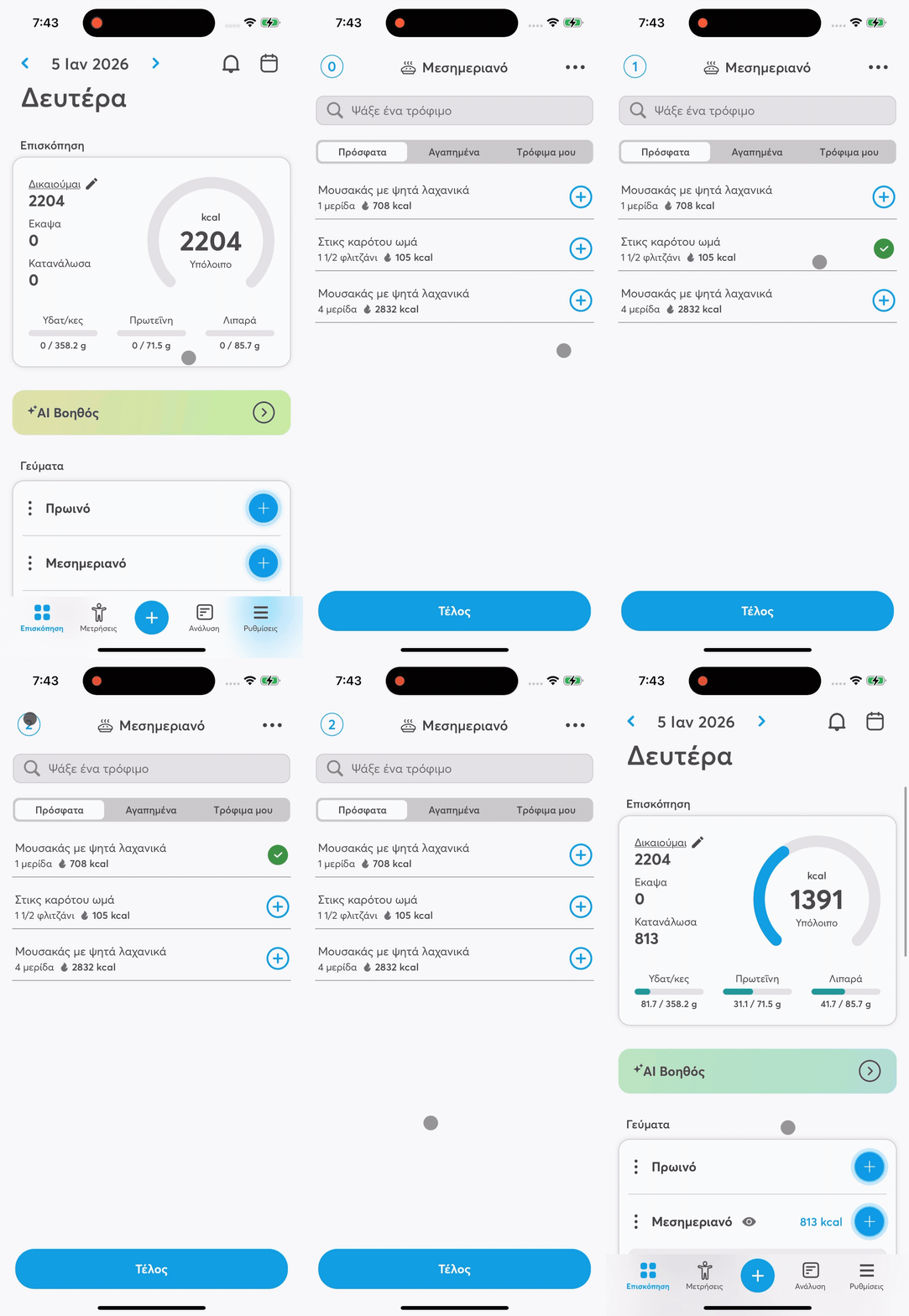
Open the app and pick the meal you want to add food to.
(breakfast, lunch, dinner, or snack).
Tap the + button next to the meal
or the + at the bottom of the screen to open food adding.
Move to one of the tabs:
Recent
Favorites
My foods
Tap right on the food you want.
➡ The food is added right away to the meal, no new search needed.
You can select more than one food for the same meal before you go back to the overview.
In the top left corner of the screen, a circular icon appears, showing how many foods you have selected.
You can keep searching or choose from lists.
When you're done, tap “Done” to go back to the meal, where all entries will be shown together.
You can edit any food straight from the meal screen:
tap on the food
change quantity or measuring unit
Changes update automatically:
the calories
the macronutrients
the total daily intake